Platform Downloads
Chronos ships in 3 versions. The choice mostly comes down to whether the machine has admin rights and internet access at install time:
| Criterion | Enterprise | Standard | User |
|---|---|---|---|
| Admin rights | Required (per-machine install) | Required by default — per-user only with MSIINSTALLPERUSER=1 |
Not required |
| Internet on first run | Not required — fully offline | Required — downloads AI models on first run | Not required — fully offline |
| Bundled dependencies | VC++ runtime, FFmpeg & AI models (below) all bundled in the installer | Smaller installer — FFmpeg & AI models (below) not included; fetched on first run if internet access allows it | VC++ runtime, FFmpeg & AI models (below) all bundled in the installer |
| Install scope | Per-machine, all users | Per-machine by default (dual-scope MSI) | Per-user only |
| Installer format | EXE bundle | MSI | EXE bundle |
| Best for | Air-gapped environments, mass/silent deployment | Networked machines, smallest download | Individual installs on a machine you don't administer |
The four "AI models" cover: speech-to-text transcription, voice activity detection (so only speech gets transcribed), speaker segmentation (splitting audio by speaker turns), and speaker identification. Enterprise and User bundle all four in the installer, along with FFmpeg. Standard ships without any of them and fetches them on first run — that download needs unrestricted outbound internet access, so it can fail on machines behind a corporate proxy or firewall, leaving Chronos without FFmpeg until it's made available another way.
Enterprise Edition
RECOMMENDEDFully offline installer with bundled dependencies. Ideal for air-gapped environments and mass deployment.
- No internet required
- VC++ Runtime included
- FFmpeg bundled
- AI models bundled
795c5f5cdb0b93221a4d535583034bc5094fd97253f725bc0716a4756eecca9e
Standard Edition
Lightweight installer — ships without FFmpeg or AI models. Fetches both on first run, which needs unrestricted internet access.
- Smaller download
- Fetches FFmpeg & models online
- Standard MSI
- System-wide install
46493913ce3eaaec12ad6ea3933ba6b8b50aa273b2fb29dd25d0e912142eeb8e
User Edition
Per-user installation without administrator privileges. Suitable for individual deployments. The bundle is the per-user installer; the Standard MSI is dual-scope and installs per-user when run with MSIINSTALLPERUSER=1 (or non-elevated), but needs internet on first run.
- No admin rights
- User-scoped
- Fully offline — FFmpeg & AI models bundled
- Quick setup
93ea4d1480023d24741bf8acbea28d1beb8fd6f7fe3c3f528c0377c7b999a2b5
macOS installer
A macOS installer is on our roadmap. Contact your Uniphore representative for a detailed timeline.
Linux installer
A Linux installer is on our roadmap. Contact your Uniphore representative for a detailed timeline.
System Requirements
| OS | Windows 10, build 19041+ |
| Processor | 4 logical processors |
| Memory | 4 GB RAM |
| Storage | 20 GB free disk space |
| OS | Windows 11, 22H2+ |
| Processor | Quad-core or better |
| Memory | 8 GB RAM |
| Storage | 50 GB+ free SSD space |
Setup Wizard
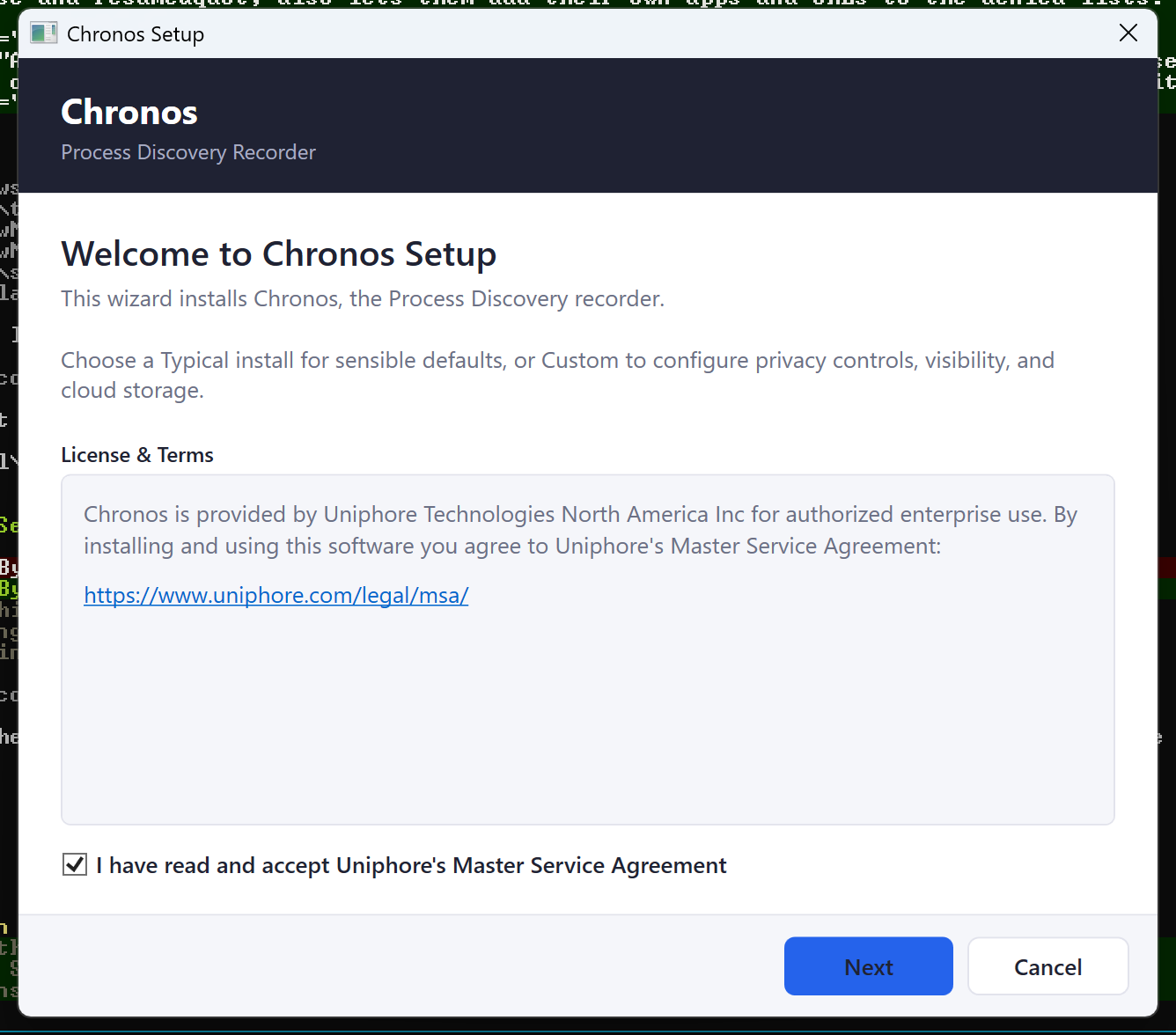
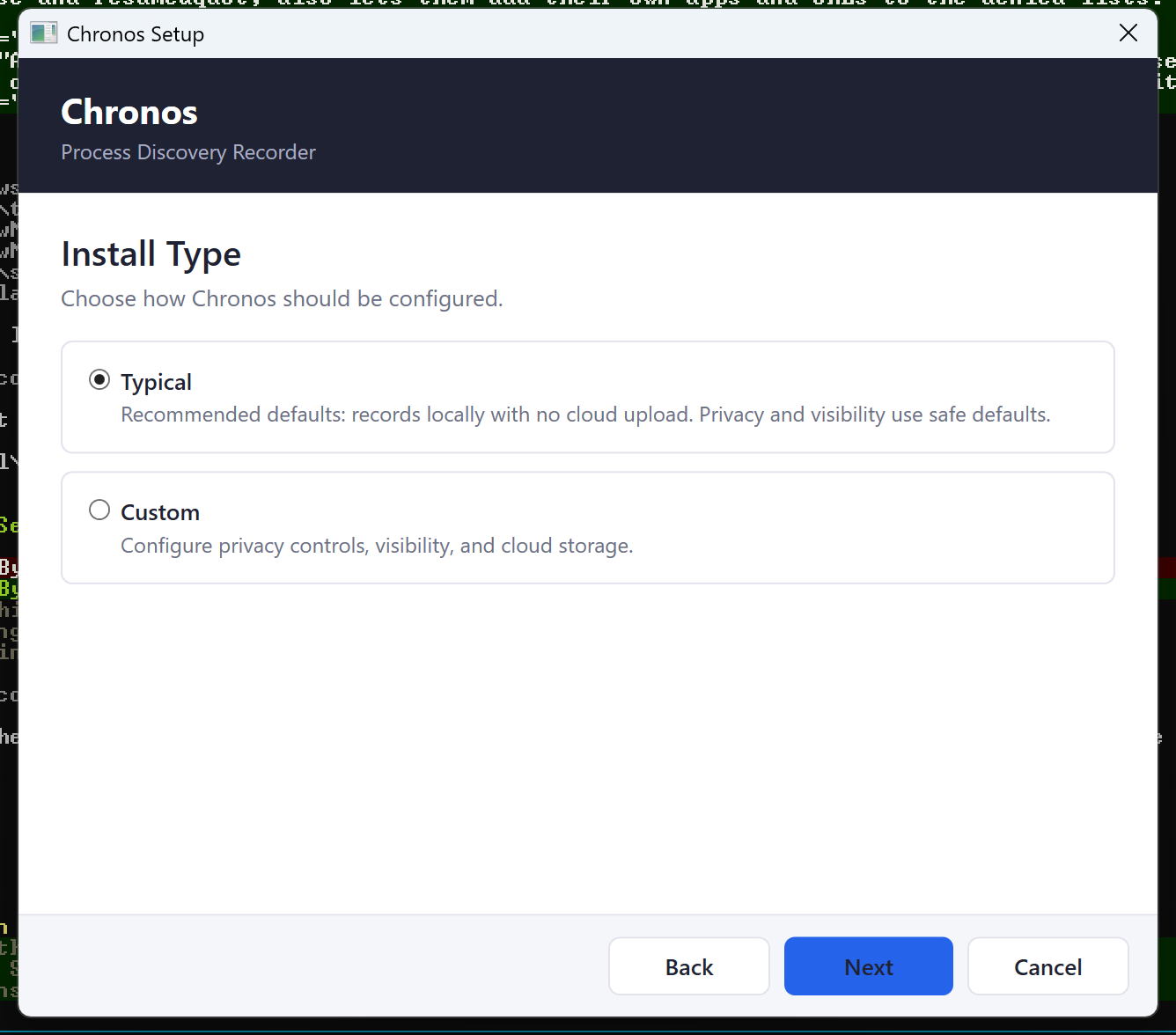
Double-clicking either EXE bundle — chronos-0.3.8-setup-enterprise.exe
(per-machine, needs admin) or chronos-0.3.8-setup-user-bundle.exe
(per-user, no UAC) — opens the wizard below instead of installing silently, and
both bundles show the same one. The standalone MSI is not silent either: it has its
own, plainer set of Windows Installer dialogs covering the same ground. The
screenshots here are the bundle wizard.
Everything the wizard offers can also be set on the command line, so any choice made
here can be reproduced unattended across a fleet. The reverse does not hold —
these properties have no wizard field and are set on the command line only:
CHRONOS_DATA_DIR, CHRONOS_MODELS_DIR,
DISABLE_VAD, MERGE_AUDIO_DEVICES and
MUX_AUDIO_INTO_VIDEO
(04 — Installation Guide);
CLOUD_CONCURRENCY, CLOUD_DB_BACKUP_INTERVAL and
CLOUD_DELETE_AFTER_UPLOAD
(06 — Cloud Storage).
One default also differs by route rather than being wrong either way, so set it
explicitly if it matters to you: EXPORT_TRANSCRIPTS is on for the
standalone MSI but off for both EXE bundles, where the wizard's checkbox or an
explicit EXPORT_TRANSCRIPTS=1 turns it on.
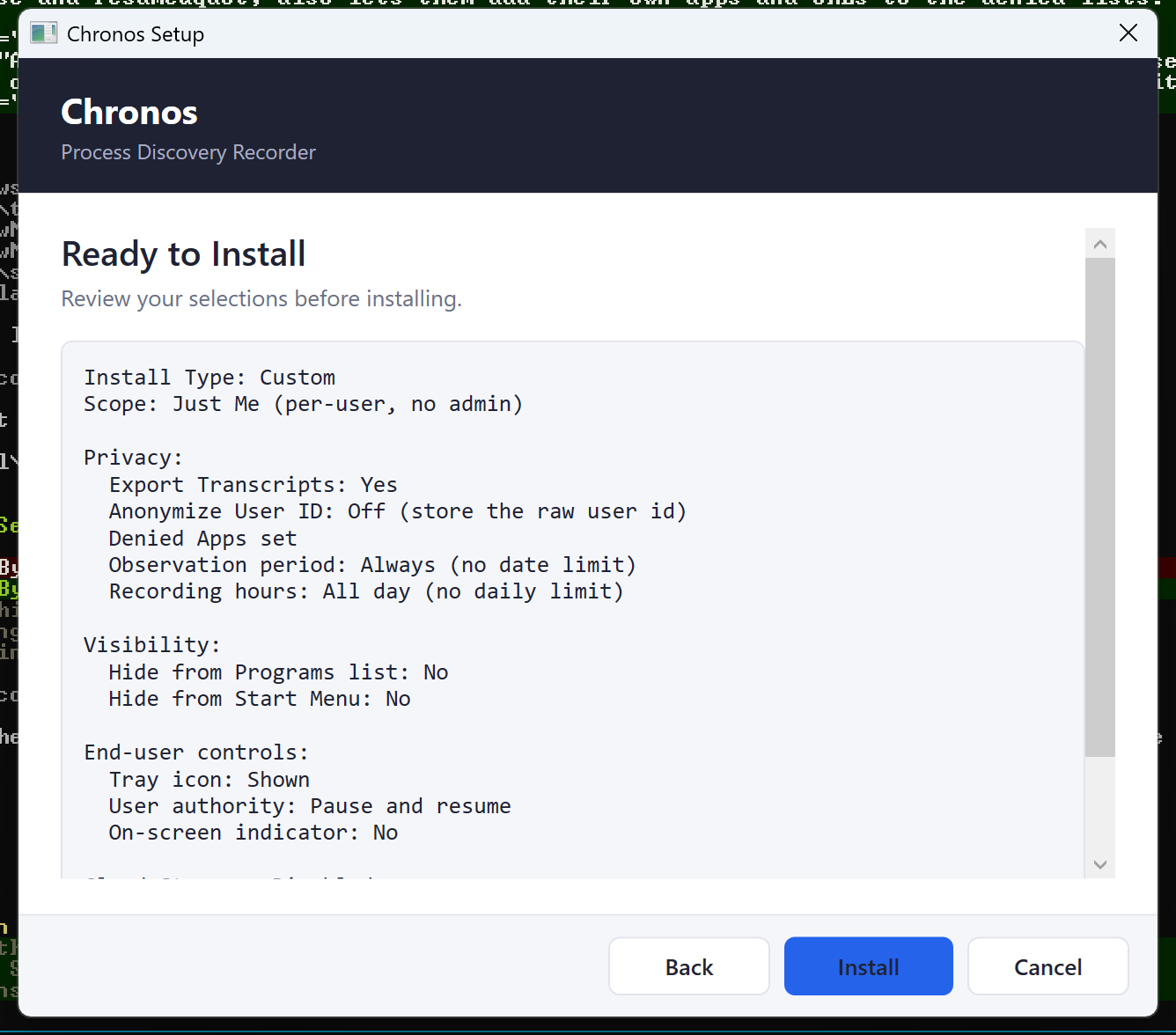
OBSERVATION_START_DATE / OBSERVATION_END_DATE, validated as you type) with optional daily hours (OBSERVATION_DAILY_START / OBSERVATION_DAILY_END, set as a pair), user-ID anonymization, the deny/allow app and URL lists, and transcript export. Includes a panel explaining where to read an app's process name off Task Manager.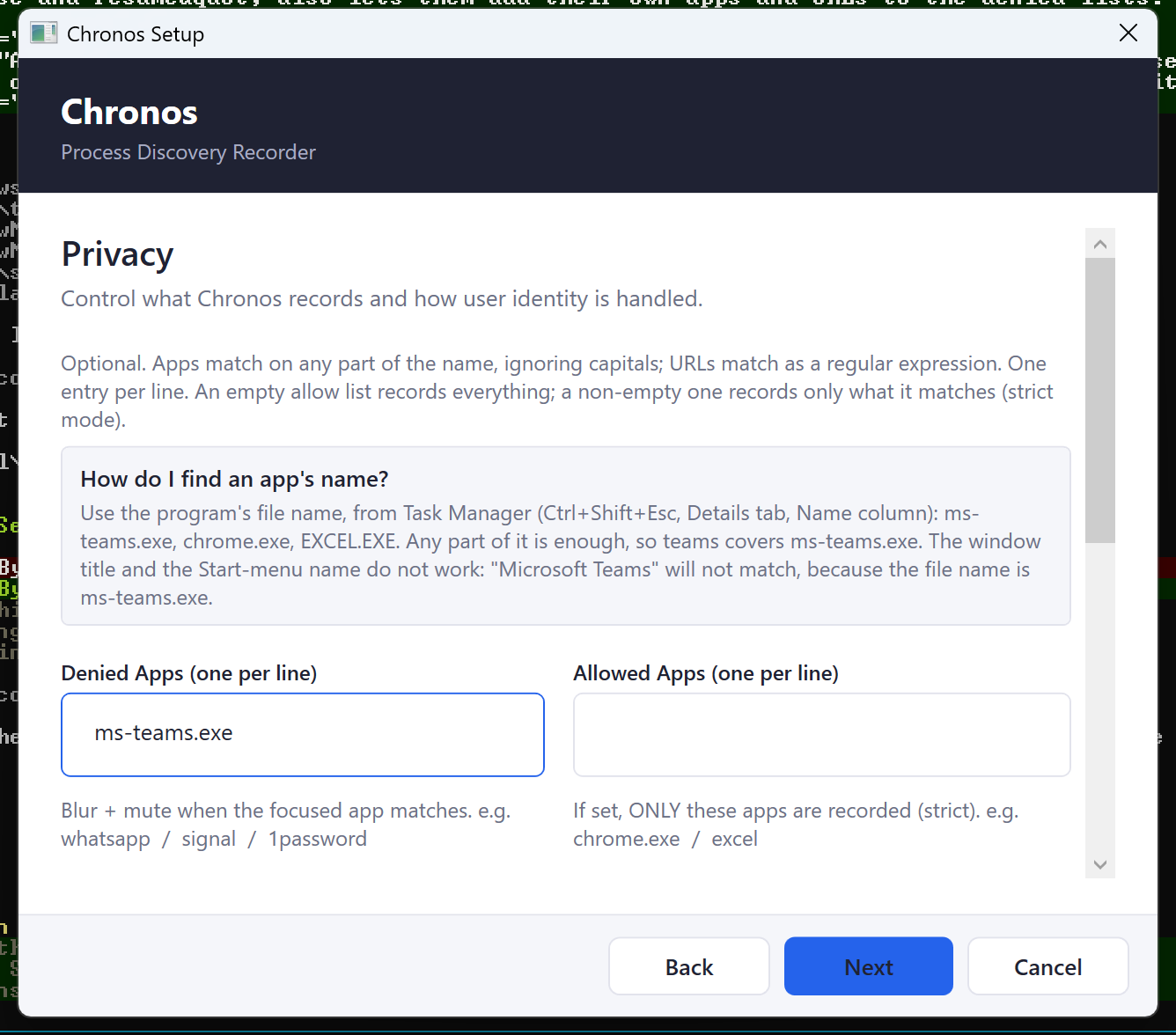
ms-teams.exe), not the window title. The panel on this page says where to read it off Task Manager.USER_UI), the on-screen pill, then user authority (USER_CONTROL_LEVEL) and how long a pause lasts before recording returns on its own (PAUSE_AUTO_RESUME_MINUTES, accepted here as 0–60) side by side. Everything here is off by default — auto-resume included, at 0, meaning a pause lasts until the person ends it — so clicking straight through gives the historical headless install.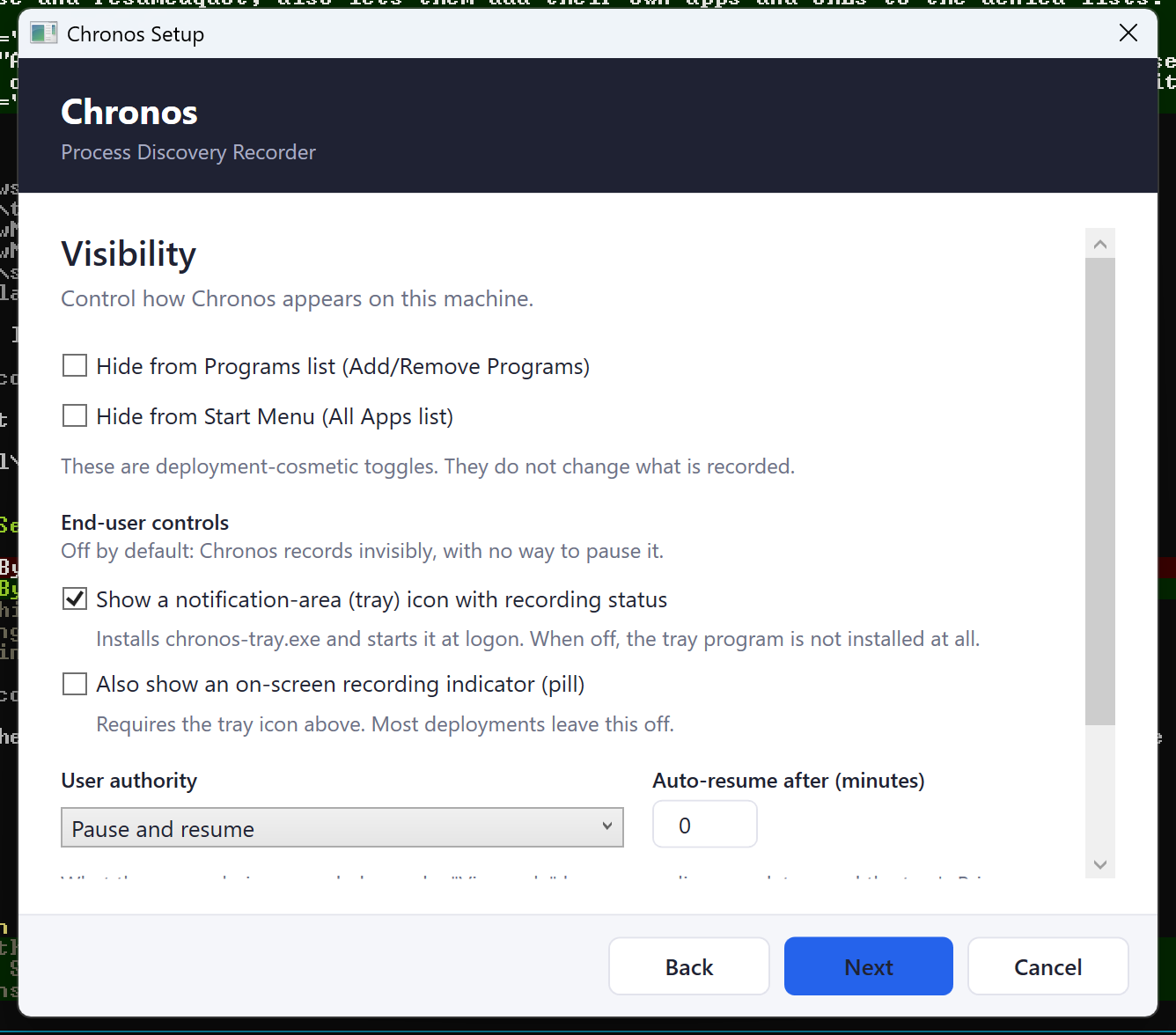
0) by default, so clicking straight through gives the historical headless install.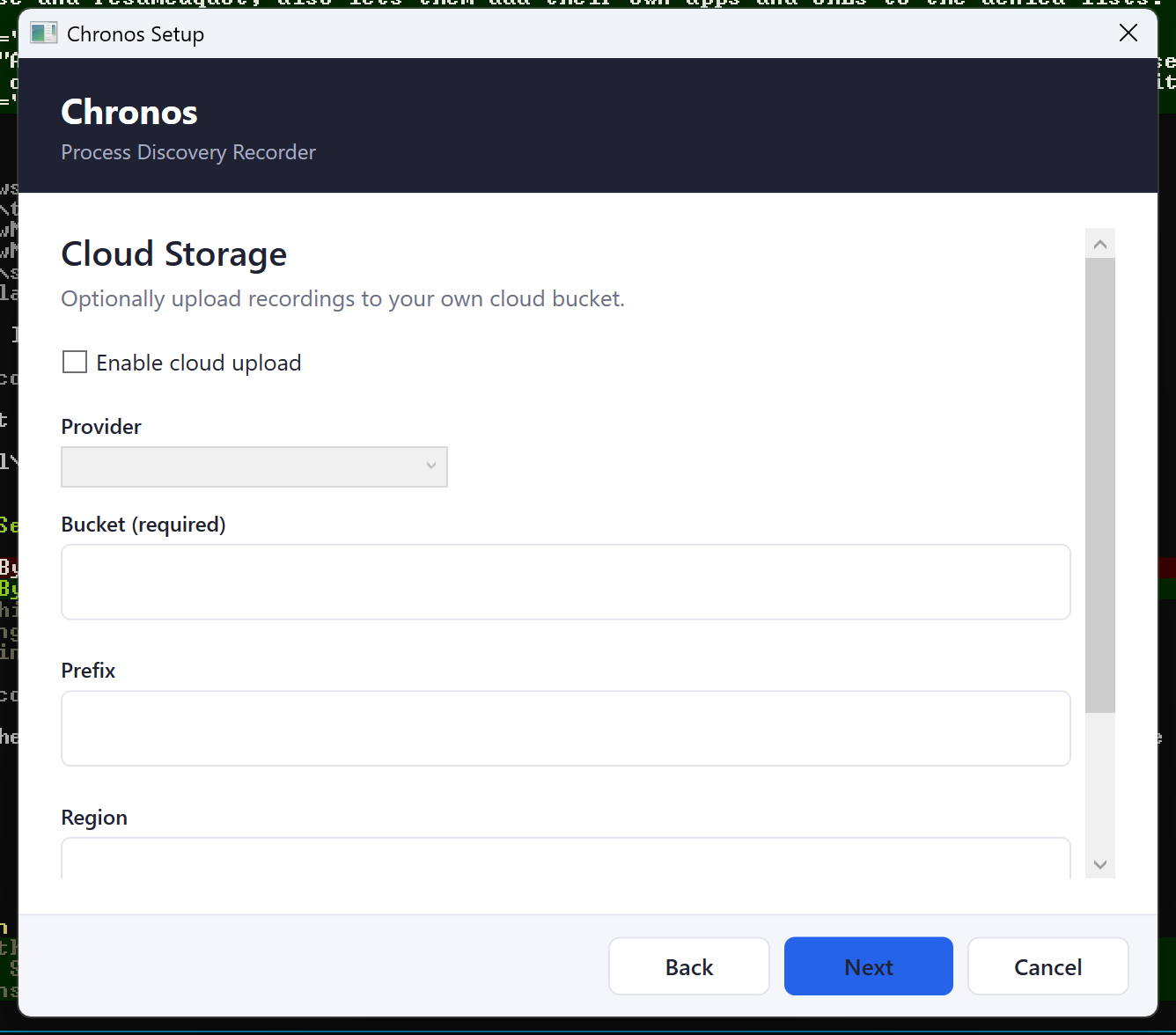
Installation Guide
| Parameter | Description | Default |
|---|---|---|
CHRONOS_DATA_DIR |
Data storage location | C:\ProgramData\Chronos |
CHRONOS_MODELS_DIR |
AI models directory | [DATA_DIR]\models |
ANONYMIZE_USER_ID |
Anonymize user identity: pseudonymize (hashed ID) or anonymize (fixed "user") |
0 (disabled) |
HIDE_FROM_PROGRAMS |
Hide Chronos from the Windows "Apps & Features" / Programs list (stealth deployment) | 0 (visible) |
HIDE_FROM_START_MENU |
Suppress the Chronos shortcut in the user's Start menu | 0 (shortcut created) |
DISABLE_VAD |
Turn off voice-activity detection, so audio is transcribed continuously instead of only where speech was detected | 1 (VAD off) |
MERGE_AUDIO_DEVICES |
Mix every capture device into one stream rather than recording each separately | 1 (merged) |
MUX_AUDIO_INTO_VIDEO |
Write audio into the MP4 alongside the video instead of as a separate file | 1 (muxed) |
# Default installation
.\chronos-0.3.8-setup-enterprise.exe /install /quiet /norestart /log install.log

# Custom data directory
.\chronos-0.3.8-setup-enterprise.exe /install /quiet /norestart CHRONOS_DATA_DIR=D:\Chronos /log install.log# Default installation
msiexec /i "chronos-0.3.8-setup.msi" /qn /norestart /L*V "install.log"
# Custom data directory
msiexec /i "chronos-0.3.8-setup.msi" /qn /norestart CHRONOS_DATA_DIR="D:\Chronos" /L*V "install.log"Both EXE bundles also open an interactive wizard when double-clicked, covering the same settings as the properties above. See 03 — Setup Wizard for a page-by-page walkthrough with screenshots.
# Check process status
Get-Process chronos

# View configuration
Get-ItemProperty -Path "HKLM:\SOFTWARE\Uniphore\Chronos"

# Tail logs
Get-Content "C:\ProgramData\Chronos\logs\chronos-task.log" -Tail 20Storage Usage
Typical recording output with default settings
Cloud Storage
Chronos can automatically upload recordings, audio, and database backups to cloud storage. Cloud storage is configured at install time by passing parameters to the Windows installer. Credentials are encrypted using Windows DPAPI and stored securely in the registry.
| Parameter | Description | Example |
|---|---|---|
CLOUD_ENABLED |
Enable cloud upload. 1 = enabled |
1 |
CLOUD_PROVIDER |
Provider: aws-s3, gcs, azure-blob, minio |
aws-s3 |
CLOUD_BUCKET |
Bucket or container name | my-chronos-bucket |
CLOUD_PREFIX |
Path prefix inside the bucket | acme-pilot |
CLOUD_REGION |
AWS region (AWS S3 only) | us-east-1 |
CLOUD_ENDPOINT |
Custom endpoint URL (MinIO / S3-compatible) | http://minio:9000 |
CLOUD_DELETE_AFTER_UPLOAD |
Defaults to 1 — a local recording is removed once it has been uploaded. Pass
CLOUD_DELETE_AFTER_UPLOAD=0 to keep local copies as well |
1 |
CLOUD_CONCURRENCY |
How many files upload at once. Raise it on a fast link, lower it to 1 where the agent's bandwidth is shared with voice traffic | 2 (default) |
CLOUD_DB_BACKUP_INTERVAL |
How often the SQLite database itself is uploaded, as a duration
(24h, 6h, 30m). The database is what makes
the recordings searchable, so this is separate from the media upload |
24h (default) |
EXPORT_TRANSCRIPTS |
Export audio transcripts as JSON alongside recordings. 0 (off)
by default on every route — standalone MSI, both EXE bundles, and the wizard
checkbox all agree. Pass 1 explicitly to turn it on |
1 |
| Parameter | Description | Provider |
|---|---|---|
AWS_ACCESS_KEY_ID |
IAM access key ID | AWS S3, MinIO |
AWS_SECRET_ACCESS_KEY |
IAM secret access key | AWS S3, MinIO |
GCS_CREDENTIALS_PATH |
Path to GCS service account JSON file on disk | GCS |
AZURE_STORAGE_ACCOUNT |
Azure Storage account name | Azure |
AZURE_STORAGE_KEY |
Azure Storage account key | Azure |
AZURE_CONNECTION_STRING |
Full Azure connection string (alternative to key) | Azure |
AZURE_SAS_URL |
Full Azure SAS URL, as the portal's Generate SAS button produces it. Carries the account, container and endpoint in one value, so no other Azure property is needed. Preferred over an account key: a SAS can be scoped to write-only on one container, and it expires | Azure |
AZURE_SAS_TOKEN |
Bare Azure SAS query string, as az storage container
generate-sas prints it. Needs AZURE_STORAGE_ACCOUNT
alongside it, because a bare token names no host |
Azure |
CLOUD_SECRETS_FILE |
Absolute path to a JSON file holding the credential fields above, so that no credential appears on the install command. Values found in the file win over the same credential passed inline. Relative paths are rejected | Any |
CLOUD_KEY_FILE |
Absolute path to the tenant RSA private key. Needed only when a
credential is supplied as a CHRONOSENC1: token; ignored
otherwise. Relative paths are rejected |
Any |
The bucket or container must already exist — Chronos never creates it, and a
missing one is not an install failure. It shows up only on the device, in the
recorder log, as provider error: azure-blob - retry policy expired.
| Provider | Create first | Credential comes from |
|---|---|---|
| AWS S3 | An S3 bucket, and an IAM user with s3:PutObject and s3:ListBucket on it |
Security credentials → Access keys |
| Google Cloud | A GCS bucket, and a service account with Storage Object Creator and Storage Object Viewer |
The service account's JSON key, deployed to each machine before the install |
| Azure Blob | A storage account and a blob container inside it | The container → Generate SAS, write permission is enough (preferred); or Storage account → Security + networking → Access keys |
| MinIO | A bucket, and the server's endpoint URL for CLOUD_ENDPOINT |
A MinIO access key with write permission on the bucket |
.\chronos-0.3.8-setup-enterprise.exe /install /quiet /norestart /log install.log `
  CLOUD_ENABLED=1 `
  CLOUD_PROVIDER=aws-s3 `
  CLOUD_BUCKET=my-chronos-bucket `
  CLOUD_REGION=us-east-1 `
  CLOUD_PREFIX=acme-pilot `
  AWS_ACCESS_KEY_ID=AKIAIOSFODNN7EXAMPLE `
AWS_SECRET_ACCESS_KEY=wJalrXUtnFEMI/K7MDENG/bPxRfiCYEXAMPLEKEYmsiexec /i "chronos-0.3.8-setup.msi" /qn /norestart /L*V "install.log" `
CLOUD_ENABLED=1 `
CLOUD_PROVIDER=aws-s3 `
CLOUD_BUCKET=my-chronos-bucket `
CLOUD_REGION=us-east-1 `
CLOUD_PREFIX=acme-pilot `
AWS_ACCESS_KEY_ID=AKIAIOSFODNN7EXAMPLE `
AWS_SECRET_ACCESS_KEY=wJalrXUtnFEMI/K7MDENG/bPxRfiCYEXAMPLEKEY.\chronos-0.3.8-setup-enterprise.exe /install /quiet /norestart /log install.log `
CLOUD_ENABLED=1 `
CLOUD_PROVIDER=gcs `
CLOUD_BUCKET=my-chronos-bucket `
CLOUD_PREFIX=acme-pilot `
GCS_CREDENTIALS_PATH=C:\path\to\service-account-key.jsonmsiexec /i "chronos-0.3.8-setup.msi" /qn /norestart /L*V "install.log" `
CLOUD_ENABLED=1 `
CLOUD_PROVIDER=gcs `
CLOUD_BUCKET=my-chronos-bucket `
CLOUD_PREFIX=acme-pilot `
GCS_CREDENTIALS_PATH=C:\path\to\service-account-key.jsonGCS_CREDENTIALS_PATH on every machine before Chronos starts. The installer stores only the path — deploy the JSON file separately..\chronos-0.3.8-setup-enterprise.exe /install /quiet /norestart /log install.log `
CLOUD_ENABLED=1 `
CLOUD_PROVIDER=azure-blob `
CLOUD_BUCKET=my-container `
CLOUD_PREFIX=acme-pilot `
AZURE_SAS_URL="CHRONOSENC1:Q0hFMQEA..." `
CLOUD_KEY_FILE=C:\deploy\acme-key.xml.\chronos-0.3.8-setup-enterprise.exe /install /quiet /norestart /log install.log `
CLOUD_ENABLED=1 `
CLOUD_PROVIDER=azure-blob `
CLOUD_BUCKET=my-container `
CLOUD_PREFIX=acme-pilot `
AZURE_STORAGE_ACCOUNT=myaccount `
AZURE_SAS_TOKEN="CHRONOSENC1:Q0hFMQEA..." `
CLOUD_KEY_FILE=C:\deploy\acme-key.xmlse= date, and that failure is quiet: devices
keep recording and simply stop uploading, with nothing but the recorder log to say so.
Record the expiry when you deploy, and renew before it —
chronos-check.ps1 on any device prints the stored expiry and fails once it
has passed. A SAS URL already names its container, and it must match
CLOUD_BUCKET: the recorder refuses a mismatched pair at startup rather than
failing every upload..\chronos-0.3.8-setup-enterprise.exe /install /quiet /norestart /log install.log `
CLOUD_ENABLED=1 `
CLOUD_PROVIDER=azure-blob `
CLOUD_BUCKET=my-container `
CLOUD_PREFIX=acme-pilot `
AZURE_SAS_URL="https://myaccount.blob.core.windows.net/my-container?sp=w&st=2026-09-01T00:00:00Z&se=2027-01-01T00:00:00Z&spr=https&sv=2025-05-05&sr=c&sig=...".\chronos-0.3.8-setup-enterprise.exe /install /quiet /norestart /log install.log `
CLOUD_ENABLED=1 `
CLOUD_PROVIDER=azure-blob `
CLOUD_BUCKET=my-container `
CLOUD_PREFIX=acme-pilot `
AZURE_STORAGE_ACCOUNT=myaccount `
AZURE_STORAGE_KEY="CHRONOSENC1:Q0hFMQEA..." `
CLOUD_KEY_FILE=C:\deploy\acme-key.xml.\chronos-0.3.8-setup-enterprise.exe /install /quiet /norestart /log install.log `
CLOUD_ENABLED=1 `
CLOUD_PROVIDER=azure-blob `
CLOUD_BUCKET=my-container `
CLOUD_PREFIX=acme-pilot `
AZURE_CONNECTION_STRING="CHRONOSENC1:Q0hFMQEA..." `
CLOUD_KEY_FILE=C:\deploy\acme-key.xmlCHRONOSENC1: token
instead of the credential itself, so the credential never reaches a deployment log
— see FAQ 12 for how to produce one, and for the
credentials-file alternative. The plaintext forms below are unchanged and remain fully
supported: no existing deployment needs to be rebuilt..\chronos-0.3.8-setup-enterprise.exe /install /quiet /norestart /log install.log `
CLOUD_ENABLED=1 `
CLOUD_PROVIDER=azure-blob `
CLOUD_BUCKET=my-container `
CLOUD_PREFIX=acme-pilot `
AZURE_STORAGE_ACCOUNT=myaccount `
AZURE_STORAGE_KEY=base64encodedkey==.\chronos-0.3.8-setup-enterprise.exe /install /quiet /norestart /log install.log `
CLOUD_ENABLED=1 `
CLOUD_PROVIDER=azure-blob `
CLOUD_BUCKET=my-container `
CLOUD_PREFIX=acme-pilot `
AZURE_CONNECTION_STRING="DefaultEndpointsProtocol=https;AccountName=myaccount;AccountKey=...;EndpointSuffix=core.windows.net".\chronos-0.3.8-setup-enterprise.exe /install /quiet /norestart /log install.log `
CLOUD_ENABLED=1 `
CLOUD_PROVIDER=minio `
CLOUD_BUCKET=chronos-data `
CLOUD_ENDPOINT=http://minio-server:9000 `
CLOUD_PREFIX=acme-pilot `
AWS_ACCESS_KEY_ID=minioadmin `
AWS_SECRET_ACCESS_KEY=minioadminEXPORT_TRANSCRIPTS=1 to any installer command above to export Whisper transcripts as JSON alongside each audio recording# Check cloud settings in registry
Get-ItemProperty -Path "HKLM:\SOFTWARE\Uniphore\Chronos\Cloud"
# Watch upload activity in logs
Get-Content "C:\ProgramData\Chronos\logs\chronos-task.log" -Wait | Select-String "cloud|upload"C:\ProgramData\Chronos\logs\install-cloud-config.log on the first device — it names the fields that were applied, never their values.Recording Filter
Chronos can selectively blur screen recordings and mute audio based on application names and/or browser URLs. This protects sensitive content (email, messaging apps) while recording work activity. Filters are configured at install time or updated via registry post-install.
The name Chronos matches is the program's process file name, not its window title and not the label on the Start menu. To look one up on the machine you are configuring:
Ctrl+Shift+Esc to open Task Manager.ms-teams.exe, chrome.exe, EXCEL.EXE.Get-Process | Where-Object { $_.MainWindowTitle } | Select-Object ProcessName, MainWindowTitle — the ProcessName column is the name to use (add .exe or leave it off, both match).
Matching is a case-insensitive substring, so any fragment of the name is
enough: teams covers ms-teams.exe, and word covers
WINWORD.EXE. The flip side is that a short fragment catches more than you may
intend — code matches both Code.exe and vscode.exe.
Use the full file name when you want to be precise.
Common mistake: using the friendly name. Microsoft Teams runs as
ms-teams.exe, so Microsoft Teams never matches while
teams does. The same applies to Microsoft Word (WINWORD.EXE) and
Visual Studio Code (Code.exe).
| Parameter | Description | Example |
|---|---|---|
DENIED_APPS |
Semicolon-separated app names to blur (case-insensitive substring match) | Teams;Slack |
ALLOWED_APPS |
Semicolon-separated app names to record (everything else blurred) | msedge.exe;notepad.exe |
DENIED_URLS |
Semicolon-separated regex patterns for URLs to blur | mail\.google\.com;.*\.youtube\.com |
ALLOWED_URLS |
Semicolon-separated regex patterns for URLs to record | github\.com;jira\.atlassian\.com |
Teams matches ms-teams.exe).
URL matching uses regex patterns and only works for browser apps (Edge, Chrome, Firefox).
When using ALLOWED_URLS, you must also include the browser in ALLOWED_APPS for URL detection to work.
Filter values are stored as plaintext in the registry (they are app names and URL patterns, not secrets).
.\chronos-0.3.8-setup-enterprise.exe /install /quiet /norestart /log install.log `
  DENIED_APPS="Teams" `
DENIED_URLS="mail\.google\.com;.*\.youtube\.com"msiexec /i "chronos-0.3.8-setup.msi" /qn /norestart /L*V "install.log" `
DENIED_APPS="Teams" `
DENIED_URLS="mail\.google\.com;.*\.youtube\.com"# Only record Edge browser and Notepad, blur everything else
.\chronos-0.3.8-setup-enterprise.exe /install /quiet /norestart /log install.log `
ALLOWED_APPS="msedge.exe;notepad.exe"# Record Edge only when on GitHub or GCS console, blur all other sites and apps
.\chronos-0.3.8-setup-enterprise.exe /install /quiet /norestart /log install.log `
ALLOWED_APPS="msedge.exe;Explorer.EXE" `
ALLOWED_URLS="github\.com;console\.cloud\.google\.com"# Record Edge on any google.com site EXCEPT Gmail
.\chronos-0.3.8-setup-enterprise.exe /install /quiet /norestart /log install.log `
ALLOWED_APPS="msedge.exe" `
ALLOWED_URLS=".*\.google\.com" `
DENIED_URLS="mail\.google\.com"msiexec /i "chronos-0.3.8-setup.msi" /qn /norestart /L*V "install.log" `
ALLOWED_APPS="msedge.exe;notepad.exe"# View recording filter settings from registry
Get-ItemProperty -Path "HKLM:\SOFTWARE\Uniphore\Chronos" | Select-Object DeniedApps, AllowedApps, DeniedUrls, AllowedUrls# Add or update denied apps
Set-ItemProperty -Path "HKLM:\SOFTWARE\Uniphore\Chronos" -Name "DeniedApps" -Value "Teams;Slack"
# Add or update denied URLs
Set-ItemProperty -Path "HKLM:\SOFTWARE\Uniphore\Chronos" -Name "DeniedUrls" -Value "mail\.google\.com;.*\.youtube\.com"
# Remove a filter (set to empty string)
Set-ItemProperty -Path "HKLM:\SOFTWARE\Uniphore\Chronos" -Name "DeniedApps" -Value ""
# Restart Chronos to apply changes
Stop-ScheduledTask -TaskName "Chronos"; Start-Sleep 3; Start-ScheduledTask -TaskName "Chronos"USER_UI=1 and USER_CONTROL_LEVEL=pause, end users can add
their own rules from the tray program's Privacy settings window
without touching the registry. That layer is deny-only — a user rule
can only make Chronos record less, never more, and there is no allow field in
its schema at all. The baseline stays read-only to them, shown with a
Managed by your organization badge on a per-machine install — or
Set when Chronos was installed on a per-user one, where the baseline is
HKCU and was chosen by the person using the machine rather than by an administrator.
The window also opens when Chronos is not currently recording: neither layer lives in
the recorder's memory, so a user who has just paused, or whose machine is outside its
observation window, can still change their own rules — the window says the change will
be applied the next time Chronos starts.
Privacy Controls
Chronos can anonymize the user identity before any data is stored or uploaded. This is required in jurisdictions with strict worker-protection regulations (for example, Italy) where deployed solutions are prohibited from tracking individual agent performance.
"user" constantusername and realname columns of the session
record. It does not cover everything: the machine's device name and hostname are stored verbatim in either mode, and log
output is not redacted. On a fleet where the device name identifies its user, treat this as reducing the identifiers on record
rather than as irreversible anonymization| Parameter | Description | Example |
|---|---|---|
ANONYMIZE_USER_ID |
Set to anonymize for full GDPR anonymization, or pseudonymize for DPIA-compliant hashed IDs (default: disabled) |
anonymize |
.\chronos-0.3.8-setup-enterprise.exe /install /quiet /norestart /log install.log `
ANONYMIZE_USER_ID=anonymizemsiexec /i "chronos-0.3.8-setup.msi" /qn /norestart /L*V "install.log" `
ANONYMIZE_USER_ID=anonymize.\chronos-0.3.8-setup-enterprise.exe /install /quiet /norestart /log install.log `
ANONYMIZE_USER_ID=pseudonymizemsiexec /i "chronos-0.3.8-setup.msi" /qn /norestart /L*V "install.log" `
ANONYMIZE_USER_ID=pseudonymize# View privacy setting from registry
Get-ItemProperty -Path "HKLM:\SOFTWARE\Uniphore\Chronos" | Select-Object AnonymizeUserIdEnd-User Controls
Chronos records silently by default, with no user interface at all. Deployments that need transparency — or a works-council agreement that grants employees a right to pause — can opt in to a notification-area icon showing recording status and, separately, a user-accessible pause. Every setting below is off by default; a default install installs no user-facing program at all.
| Parameter | Description | Default |
|---|---|---|
USER_UI |
Install and launch the tray program (notification-area icon with recording status) | 0 |
USER_CONTROL_LEVEL |
none = status only, recording cannot be stopped; pause = the user may pause, and the pause lasts until they resume it; full = accepted alias of pause, no behavioural difference |
none |
USER_UI_SHOW_PILL |
Also show an on-screen recording indicator. Requires USER_UI=1. The pill is excluded from the capture path, so it is not burned into the recordings — see the note under the table |
0 |
PAUSE_AUTO_RESUME_MINUTES |
Minutes after which a user-initiated pause resumes automatically. 0 = never. The tray starts only open-ended pauses, so this is what bounds every pause a user can start. Offered on the Visibility page of the wizard, which accepts 0–60 and will not advance past a larger value it read off the machine; the standard MSI's own dialog and the command line accept any number, and the recorder logs a warning above 60 but honours it rather than clamping |
0 |
The pill sits on screen for the whole session, so if the capture path saw it, every frame of every
recording would carry a watermark. It is created with SetWindowDisplayAffinity(WDA_EXCLUDEFROMCAPTURE),
which keeps it out of the captured frames.
That API is documented against DWM and PrintWindow capture rather than the desktop-duplication
path Chronos uses, so we verify it rather than assume it. The check records twice through the real pipeline
at the installed settings — once with a colour-identical decoy window that deliberately does
not call the API, once with only the real pill. The decoy was detected in 19 of 19 sampled frames;
the pill in 0 of 19, with its window confirmed on screen throughout via UI Automation. The decoy is what
makes the second number mean anything: without it, “found nothing” would be equally consistent
with a detector that cannot see.
One consequence worth knowing: the same exclusion hides the pill from ordinary screen capture too, so it does not show up in Print Screen, Snipping Tool or most meeting-share tools. It is visible to the person at the machine, which is its purpose.
The user can also put the pill away: its ✕ and a matching
Hide the on-screen indicator row in the tray menu both dismiss it for the session, and the
row then offers to bring it back. This is not an opt-out of transparency — the dismissal is never
written to disk, so the pill returns at the next sign-in, UserUiShowPill still reads
1, and the tray icon stays where it is either way. A pill that cannot be moved off the one
control someone needs is a reason to fight the software rather than accept it.
msiexec /i "chronos-0.3.8-setup.msi" /qn /norestart ALLUSERS=1 `
USER_UI=1.\chronos-0.3.8-setup-enterprise.exe /install /quiet /norestart `
USER_UI=1 USER_CONTROL_LEVEL=pause PAUSE_AUTO_RESUME_MINUTES=30An upgrade or repair that does not repeat these properties keeps whatever the
machine is already configured with. The installer reads the settings back out of the registry
(both hives, 64-bit view) before deciding what to write, so
chronos-0.3.8-setup-enterprise.exe /install /quiet /norestart on a consent-mode machine
leaves the tray on, at the same control level. Anything named on the new command line still wins, so
an upgrade is also how you change a setting fleet-wide. The settings that carry over are
USER_UI, USER_UI_SHOW_PILL, USER_CONTROL_LEVEL,
PAUSE_AUTO_RESUME_MINUTES, OBSERVATION_START_DATE,
OBSERVATION_END_DATE, OBSERVATION_DAILY_START,
OBSERVATION_DAILY_END, and the four recording filter lists
(DENIED_APPS, ALLOWED_APPS, DENIED_URLS,
ALLOWED_URLS). An interactive upgrade keeps them too — the wizard reads the
installed values during its detect phase and shows them on the Privacy and Visibility pages, except
for the four lists, whose text boxes always open empty; leaving them empty is silence, so the
installed lists survive.
A list cannot be emptied from the installer. Windows Installer cannot tell
DENIED_APPS="" from DENIED_APPS never being mentioned, so an empty value
reads as “say nothing” and the remembered list wins. To clear one, delete the registry
value and restart the Chronos task, or uninstall before reinstalling. The asymmetry is deliberate:
remembering a list too long means recording less than intended, which an operator notices;
forgetting one means recording an app the customer promised their staff would never be recorded.
Not carried over — pre-existing behaviour, unchanged here. Cloud storage
(CLOUD_*, AWS_*), HIDE_FROM_PROGRAMS,
HIDE_FROM_START_MENU, the anonymization level, and the audio/export toggles
(DISABLE_VAD, MERGE_AUDIO_DEVICES, MUX_AUDIO_INTO_VIDEO,
EXPORT_TRANSCRIPTS) revert to their defaults on an upgrade that
does not repeat them. If your fleet uses any of those, keep the original install command line in the
ticket and re-use it verbatim, adding only what you mean to change.
# A default (headless) install reports 0 / none / 0 / 0
Get-ItemProperty -Path "HKLM:\SOFTWARE\Uniphore\Chronos" |
    Select-Object UserUiEnabled, UserControlLevel, UserUiShowPill, PauseAutoResumeMinutes

# ...and the tray program is not present on disk at all
Test-Path "C:\Program Files\Chronos\bin\chronos-tray.exe"Observation Period
A process-discovery engagement usually runs for a fixed number of weeks, but the machines are provisioned before it starts and collected long after it ends. Give Chronos a date range and it stays installed but idle outside it — no second visit to each machine to switch recording on, and no data captured outside the window you agreed with the works council. An optional pair of daily times narrows that range further, to the shift you actually agreed to observe. Leave all four blank and Chronos records whenever the machine is on, exactly as before.
| Parameter | Description | Default |
|---|---|---|
OBSERVATION_START_DATE |
Recording does not begin before this local calendar date. Format YYYY-MM-DD |
empty |
OBSERVATION_END_DATE |
Recording stops after this local calendar date. Format YYYY-MM-DD |
empty |
OBSERVATION_DAILY_START |
Time of day recording starts, inclusive. Format HH:mm, 24-hour local time. Must be set together with the end time |
empty |
OBSERVATION_DAILY_END |
Time of day recording stops, exclusive. Format HH:mm. An end earlier than the start crosses midnight (night shift) |
empty |
Both dates are inclusive and evaluated against the machine's local calendar date. One side may be left open — a start with no end, or an end with no start. At the end of the window Chronos stops recording and stays installed and idle; it does not uninstall itself. Outside the window neither screen nor microphone is captured — a machine deployed a week early opens no video file and no audio stream until the start date arrives.
A bad period stops recording rather than being ignored. The
wizard refuses to advance past the Privacy page while a date is malformed or the
start is after the end, so an interactive install cannot ship one. An unattended
install can: msiexec and the bundle's /quiet path accept
whatever you pass. Chronos then records nothing, reports
observation.state = misconfigured at
/recording/status, names the offending value in
<data dir>\logs\chronos-task-<date>.log, and the tray —
where it is deployed — tells the user to contact IT. This is deliberate: a typo
must not widen what is recorded. Recording nothing for a day is recoverable;
recording outside the agreed period is not.
The daily hours are an optional limit inside those dates, and they only ever
narrow the range — outside the dates nothing is recorded whatever the clock says.
The start time is inclusive and the end time is
exclusive: 09:00–18:00 records from
09:00:00 up to but not including 18:00:00. An end time earlier than the
start is an overnight window: 22:00–06:00
records from 22:00 through midnight until 06:00 the next morning, which is how a
night shift is configured. Both times must be supplied together — one alone is a
configuration error, as are two equal times — and both are the machine's local
24-hour clock, at minute granularity.
msiexec /i "chronos-0.3.8-setup.msi" /qn /norestart ALLUSERS=1 `
OBSERVATION_START_DATE=2026-09-01 OBSERVATION_END_DATE=2026-09-28.\chronos-0.3.8-setup-enterprise.exe /install /quiet /norestart `
OBSERVATION_START_DATE=2026-09-01 OBSERVATION_END_DATE=2026-09-28 `
USER_UI=1 USER_CONTROL_LEVEL=pausemsiexec /i "chronos-0.3.8-setup.msi" /qn /norestart ALLUSERS=1 `
OBSERVATION_START_DATE=2026-09-01 OBSERVATION_END_DATE=2026-09-28 `
OBSERVATION_DAILY_START=09:00 OBSERVATION_DAILY_END=18:00.\chronos-0.3.8-setup-enterprise.exe /install /quiet /norestart `
OBSERVATION_START_DATE=2026-09-01 OBSERVATION_END_DATE=2026-09-28 `
OBSERVATION_DAILY_START=22:00 OBSERVATION_DAILY_END=06:00
With USER_UI=1 the tray icon explains itself: before the window opens
it reads not recording - observation period starts 2026-09-01,
after the end date not recording - observation period ended 2026-09-28,
and outside the day's hours
not recording - recording hours are 09:00-18:00.
A second menu line always shows the configured window, so "when does this start?"
is answerable without reading the registry.
If USER_CONTROL_LEVEL is pause or full, the
menu also offers Start recording now so a user who is ready early
can begin. That exception covers the one closed stretch they overrode and nothing
beyond it: it lapses at the next boundary of the window, or at the next logon,
whichever comes first. Starting at 07:00 under
OBSERVATION_DAILY_START=09:00 records straight through 09:00, and the
18:00 close still happens on time. With none there is no such control
and the dates are absolute.
Two states cannot be started at all, and in both the menu item is
greyed out and the endpoint returns 403. After the end date it reads
the observation period has ended — every other hold-off has a
later boundary that reopens it, this one does not, so an override would have no
bound to expire at; extending an engagement means setting a new end date and
restarting the scheduled task. A window that cannot be parsed reads
recording cannot start - ask your it administrator: with no readable
window there is no period to record inside, so starting would mean recording with
no end date.
Each boundary crossing is written to the recording_events table with
source=schedule; a user starting early is recorded as
source=user, so the audit trail distinguishes the two.
# What the installer stored (empty on an unlimited install)
Get-ItemProperty -Path "HKLM:\SOFTWARE\Uniphore\Chronos" |
    Select-Object ObservationStartDate, ObservationEndDate, ObservationDailyStart, ObservationDailyEnd

# What the recorder currently believes (tray-enabled installs)
# Read the token file at call time, never from a cached copy: Chronos mints a new one
# on every start, so a token saved earlier stops working after the next restart.
Invoke-RestMethod http://127.0.0.1:3030/recording/status `
    -Headers @{ 'X-Chronos-Control-Token' = (Get-Content 'C:\ProgramData\Chronos\control-token' -Raw).Trim() } |
    Select-Object -ExpandProperty observation
The dates and hours can be changed after installation by editing
ObservationStartDate, ObservationEndDate,
ObservationDailyStart and ObservationDailyEnd under
HKLM\SOFTWARE\Uniphore\Chronos (or HKCU\Software\Uniphore\Chronos
for a per-user install) and restarting the Chronos scheduled task. This works in
both directions — extending an engagement needs no reinstall. While Chronos is
running the window is re-evaluated every 30 seconds, so a machine left on over the
end date stops on its own and a daily boundary can be up to half a minute late;
the video segment in progress is finalized first.
A value that does not parse — a date that is not YYYY-MM-DD, a
time that is not HH:mm, one daily time without the other, or a start
after the end — stops recording rather than being ignored.
Chronos stays installed and running, records nothing, reports
observation.state = misconfigured at /recording/status, and
(where the tray is deployed) tells the user the recording period is not configured
correctly and to contact IT. The launcher names the value at fault in
chronos-task-<date>.log. This is deliberate: ignoring a typo would
leave the machine recording continuously, or all day inside its dates, which is the
one outcome an observation period exists to prevent and the only one that cannot be
undone afterwards.
All four values also survive an upgrade or repair that does not repeat them — see
Upgrades keep these settings, which also lists the older
settings that do not.
Ending an engagement early through the installer needs one extra
switch, because a date has no "off" spelling: an empty
OBSERVATION_END_DATE= cannot be told apart from not passing it at all,
so a reinstall keeps the configured period rather than removing it. Say so
explicitly instead:
# Clears all four values; the machine records continuously again.
# Note the verb: this runs against a machine that already has Chronos on it, so it is a
# reconfigure, not an install. /repair is what re-applies properties to the installed build.
.\chronos-0.3.8-setup-enterprise.exe /repair /quiet /norestart CHRONOS_CLEAR_OBSERVATION=1

# Or against the standalone MSI. REINSTALL=ALL REINSTALLMODE=vomus is required for the same
# reason: a plain /i of the version already installed fails with 1638, and it is the 'm' and 'u'
# in the mode string that rewrite the registry values the observation period actually lives in.
msiexec /i "chronos-0.3.8-setup.msi" /qn /norestart ALLUSERS=1 `
  REINSTALL=ALL REINSTALLMODE=vomus CHRONOS_CLEAR_OBSERVATION=1
Drop ALLUSERS=1 if the machine has a per-user install — and use
the per-user bundle rather than the enterprise one, since a bundle can only
reconfigure the scope it installed.
CHRONOS_CLEAR_OBSERVATION=1 cannot be combined with any
OBSERVATION_* value — to change a period, pass the new
dates, which replace the old ones on their own. In the wizard, clearing the date and
time boxes on the Privacy page does the same job: once you have edited them, leaving
all four empty is read as "no period" rather than as silence. Editing the registry
directly works too — delete the four values and restart the scheduled task.
Frequently Asked Questions
01 What distinguishes Enterprise from Standard editions?
02 Are administrator privileges required?
03 Can data storage location be customized?
CHRONOS_DATA_DIR parameter during installation. Ensure path is on fixed local drive with sufficient space. Avoid network paths and removable drives.
04 Uninstallation procedures?
msiexec /x "chronos-0.3.8-setup.msi" /qnEnterprise:
.\chronos-0.3.8-setup-enterprise.exe /uninstall /quietNote: Uninstallation removes application but preserves recorded data.
05 Multi-monitor support?
06 Process status verification?
Get-Process chronosTask Manager: Look for "chronos.exe"
Logs:
C:\ProgramData\Chronos\logs\
07 Does Chronos work with Citrix Workspace?
Chronos runs on the user's physical Windows/Mac machine and records the screen, including the Citrix Workspace window showing the remote session. In most deployments this works out of the box. Two caveats worth flagging up front:
1. Citrix App Protection. If the Citrix environment has the anti-screen-capture policy enabled on the apps or desktops being monitored, the Citrix window will appear blank/black in Chronos recordings by design. The fix is straightforward — the customer's Citrix admin adds
chronos.exe to the Screen Capture Allow List in Citrix Cloud. We can share the exact entry to allow-list.
2. Chronos deployed inside the Citrix-hosted desktop. Technically possible. This is usually the preferred setup when the activity to be recorded happens inside Citrix, because local screen-capture protections may prevent tools on the user's local machine from recording the Citrix window.
To give a more specific answer, we need to confirm:
• Will Chronos be installed on users' physical endpoints, or is the customer considering installing it inside the Citrix virtual desktop itself?
• Is App Protection / anti-screen-capture enabled in their Citrix environment today?
08 Can PII be redacted before data reaches the Uniphore cloud?
For customers with strict data-residency requirements who need PII removed before any data leaves their environment, Uniphore also offers a customer-deployed redaction worker (BYOC). The redaction service runs inside the customer's own environment — either in their cloud account or on an on-prem container host — and processes recordings before they cross to the Uniphore cloud.
How the customer-deployed flow works:
• Chronos endpoints upload recordings to a customer-owned input bucket.
• The redaction worker reads from that bucket, redacts video frames, audio, and OCR text, and writes the redacted output to a second customer-owned output bucket.
• Only the redacted output bucket is connected to the Uniphore cloud for downstream Process Discovery ingestion. Raw recordings never leave the customer environment.
Contact your Uniphore representative for support on this option.
09 Support channels?
10 How do I hide Chronos from the Programs list and Start menu?
HIDE_FROM_PROGRAMS=1 and/or HIDE_FROM_START_MENU=1
at install time. The defaults are visible (Chronos appears in Apps & Features
and the Start menu) so endpoint-management tools can verify deployment. To install
in stealth mode for environments where Chronos must not appear to end users:
msiexec /i chronos-0.3.8-setup.msi /qn HIDE_FROM_PROGRAMS=1 HIDE_FROM_START_MENU=1HIDE_FROM_PROGRAMS=1 the installer writes
SystemComponent=1 to both the MSI and the Burn bundle ARP keys, so
neither entry shows in the Programs list. Uninstall in stealth mode requires
the command-line uninstall path described above.
11 Why can end users only add to the deny lists, never to the allow lists?
USER_CONTROL_LEVEL=pause, a user can add their own apps and
URLs to the denied lists from the tray's Privacy settings, so they can always
exclude something personal without asking anyone. They cannot add to the allowed
lists, and they cannot remove or edit the entries the installer set — those
are shown read-only and marked as managed by the organization.
The rule is that a user may make Chronos record less, never more. If users could edit the allow lists, then on a machine installed in strict mode — a non-empty allow list, meaning only matching apps are recorded — anyone could add an app to it and quietly bring a system outside the agreed scope into the recording, which is the opposite of what a recording filter is for. This is the same model as Chrome and Edge policies or macOS Managed Preferences: local settings can tighten a managed baseline but not loosen it.
It is enforced in the recorder, not in the window. The tray writes user
additions to user-filters.json in the data directory, and Chronos
unions only the denied_apps and denied_urls fields
into the installed policy — an allowed_apps key added to
that file by hand is ignored rather than obeyed.
With USER_CONTROL_LEVEL=none — the default — the
Privacy settings window still opens from the tray, but every list in it is
read-only and it says so: the lists then change only by reinstalling or by an
administrator editing the registry. The deny-only rule applies to per-user
installs as well, so a machine installed without admin rights behaves the same
way.
12 Does our storage account key end up in the deployment logs?
IntuneManagementExtension.log, Defender for Endpoint
DeviceProcessEvents, and Security event 4688 — and none of them
can be scoped away per application, so a credential typed into an install command is
readable by everyone with access to those logs. Two optional installer properties
move it off that command line. Both are additive: an install that passes credentials
inline behaves exactly as it always has, so nothing here changes an existing
deployment.
1 — a credentials file in the deployment payload. Put the
credential in a JSON file, ship the file with the installer, and pass the
installer its path as CLOUD_SECRETS_FILE. A path is not a
secret, so the collectors above have nothing to record. The recognised fields are
AzureSasUrl, AzureSasToken,
AzureConnectionString, AzureStorageAccount,
AzureStorageKey, AwsAccessKeyId,
AwsSecretAccessKey and GcsCredentialsPath — fill
in only the ones your provider needs; unknown fields are ignored.
{
  "AzureStorageAccount": "myaccount",
  "AzureStorageKey": "base64encodedkey=="
}.\chronos-0.3.8-setup-enterprise.exe /install /quiet /norestart /log install.log `
CLOUD_ENABLED=1 CLOUD_PROVIDER=azure-blob CLOUD_BUCKET=my-container `
CLOUD_PREFIX=acme-pilot CLOUD_SECRETS_FILE=C:\deploy\chronos-cloud.json
The file is read once during the install, its values are written to the registry
under DPAPI exactly as an inline credential would be, and the installer does not
copy the file anywhere. Keep it inside the deployment payload rather than at a
permanent path such as C:\Temp, so it disappears when the payload is
cleaned up.
2 — an encrypted value on the command line. Where the credential has to be entered in a console, or where you would rather not hand it to anyone at all, encrypt it once against a per-tenant RSA public key and pass only the ciphertext. Run Chronos-CredentialCipher.ps1 (published with every release, self-contained, nothing else needed) on a machine you trust:
# once per tenant. Writes acme-key.xml (private) and acme-key.pub.xml (public)
.\Chronos-CredentialCipher.ps1 -Mode NewKeyPair -TenantName acme -OutDir C:\keys

# once per credential. Omit -Value and it prompts without echoing, so the
# credential stays out of your shell history
.\Chronos-CredentialCipher.ps1 -Mode Protect -PublicKey C:\keys\acme-key.pub.xml

# prove the pair matches before a fleet rollout - a mismatch is otherwise only
# visible later, as uploads that never happen
.\Chronos-CredentialCipher.ps1 -Mode Test -PublicKey C:\keys\acme-key.pub.xml -PrivateKey C:\keys\acme-key.xml
-Mode Protect prints a CHRONOSENC1: token. Any
credential parameter accepts one in place of a plaintext value, as does any field
inside the JSON file above. There is no switch to turn this on: a value carrying
that prefix is decrypted at install time, anything else is used as-is, so
plaintext and encrypted values mix freely. The install needs the matching private
key, named by CLOUD_KEY_FILE — it is read once and not retained
on the device. Both forms are shown among the Azure examples in
06 — Cloud Storage.
+ and /.C:\ProgramData\Chronos\logs\install-cloud-config.log by field name. The install still succeeds, so check that log on the first device.CLOUD_SECRETS_FILE nor CLOUD_KEY_FILE accepts a relative path. Both are ordinary installer properties, so both work from any deployment tool, from SCCM, or from a hand-run install — nothing here is specific to Intune.
The installer's own logs are not one of those surfaces: the credential
properties are declared hidden, so both the MSI verbose log and the bundle log
at %ProgramData%\ChronosInstall.log show
********** in place of the value.
What none of this changes: a token is not a secret-management system. Whoever holds the tenant private key can decrypt it, and after the install the credential is stored DPAPI-encrypted in the registry and decrypted into the recorder, which needs the plaintext to sign every upload — so a local administrator or the signed-in user of the device can recover it, as with any credential an unattended process uses. Treat the credential as compromised if the device is, scope it to a single write-only container, and rotate it on a schedule.